When your CAPS dashboard shows an offer, click Accept Admission, confirm it, and then check that CAPS records your status as accepted. After that, print your JAMB admission letter and start your institution’s clearance process.
Accepting is a decision, not a formality. Read this whole short guide before you click, because one part of accepting cannot be undone by clicking again.
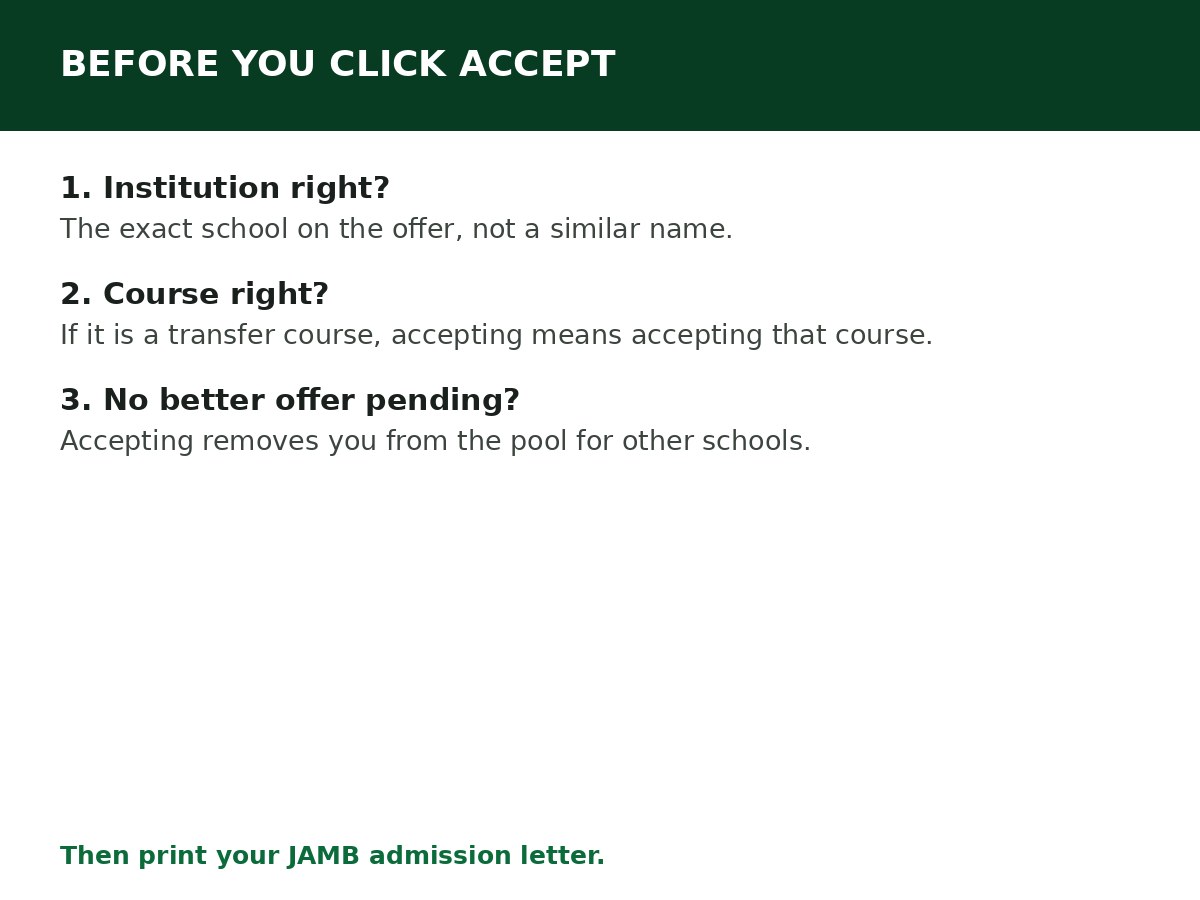
Before you click Accept: check three things
- The institution is the one you want. Not a similar name, not a school you applied to as a backup and have since changed your mind about — the exact institution on the offer.
- The course is the one you want. If the offer is for a different course from the one you applied for, it came through Transfer Approval. Accepting it means accepting that course, not your original course.
- You are not waiting on a better offer you would genuinely prefer. Once you accept, you leave the CAPS admission pool for other institutions. You cannot accept this offer “just in case” and keep waiting for another school.
If all three are yes, accept. If any is no, read How to Reject Admission on JAMB CAPS before you do anything.
How to accept, step by step
Step 1: Log in at efacility.jamb.gov.ng with your registered email and password.
Step 2: Click Check Admission Status, select your exam year, enter your registration number, and click Access my CAPS. On a phone, switch your browser to Desktop site first — otherwise the menu may not appear.
Step 3: Open Admission Status. Confirm the offer shows the institution and course you expect.
Step 4: Click Accept Admission.
Step 5: Confirm the acceptance when CAPS asks you to. Your status should update to show the admission as accepted.
Step 6: Log back in and confirm the acceptance is recorded. Do not rely on a screenshot alone — confirm it on CAPS itself.
Alternative by SMS: send ACCEPT to 55019 or 66019 from the phone number linked to your JAMB profile, then log back into CAPS to confirm the choice was recorded. Use the portal method when you can get online; use SMS when you cannot.
What accepting does — and does not do
It does:
- Record your acceptance with JAMB, making the offer official on CAPS.
- Remove you from the admission pool for other institutions in that cycle.
- Unlock the next step: printing your JAMB admission letter from e-Facility.
It does not:
- Complete your institution’s own admission process. Most institutions have a separate portal acceptance, acceptance fee, and clearance/screening, with their own deadlines.
- Guarantee that your institution’s portal updates instantly. Allow 24–48 hours for systems to synchronise; if your institution’s portal still does not show you after a few days, take your printed JAMB admission letter to its admission office.
- Mean you can change your mind on CAPS and pick another school later. Reversing an acceptance is not a button you press — it requires going through JAMB and the institution, and it depends on slot availability.
After accepting: the next five steps
- Print your JAMB admission letter from e-Facility. This is a paid service on the portal; the amount is shown at checkout. Print both copies if the portal provides candidate and institution copies, and keep a PDF backup.
- Accept on your institution’s portal if it has its own acceptance step, and note its deadline — it is separate from CAPS.
- Pay the institution’s acceptance fee (amount and deadline are set by the institution, not by JAMB) and keep the receipt.
- Start clearance/screening with the documents your institution lists — typically your JAMB admission letter, original result slip, O’Level result, and identification documents. Check the institution’s own list; do not rely on a generic list.
- Watch for resumption and registration dates from the institution. CAPS acceptance does not register you for lectures — the institution’s registration does.
Full detail: What to Do After Accepting Admission on CAPS.
If you clicked Accept by mistake
Act immediately, and go in person if you can. There is no online “undo accept” button. Visit a JAMB office or your institution’s admission office with your registration details and explain what happened. Whether it can be reversed depends on whether the institution will re-recommend you and whether a slot is still available. The longer you wait, the less likely that is.
This is why the “check three things” section above comes first. A mistaken acceptance is fixable only sometimes; a careful acceptance needs no fixing.
Related Guides & Next Steps
- How to Check Admission Status on JAMB CAPS
- How to Check JAMB Result Online
- How to Reject Admission on JAMB CAPS
- JAMB CAPS Explained for First-Time Candidates
- What to Do After Accepting Admission on CAPS
Frequently asked questions
Is accepting on CAPS free? Accepting the offer on CAPS itself is part of the portal process. Printing the admission letter afterwards is a paid e-Facility service.
How long do I have to accept? Do not wait. Offers are not open-ended, and an unanswered offer can expire and revert to “Not Admitted”. Accept or reject promptly once you have decided.
Can I accept on CAPS and still accept another school’s offer later? No. Accepting removes you from the pool for other institutions in that cycle.
I accepted, but my school’s portal says I am not admitted. What happened? Usually a synchronisation delay of 24–48 hours. If it persists after a few days, take your printed JAMB admission letter to the institution’s admission office.
Can I accept by SMS instead of the portal? Yes — send ACCEPT to 55019 or 66019 from your registered number — but always log back into CAPS to confirm it was recorded.
Sources and last update
- CAPS accept steps, pool consequences, SMS method and admission-letter step, cross-checked across multiple independent JAMB guides and JAMB’s status clarification.
Last updated: 24 October 2026. Evergreen guide — review every 3–6 months and on every JAMB admission-cycle announcement.

Written by Olaitan Ilori
Olaitan Ilori is the founder and lead researcher at CareerMedal. He provides verified, practical guides on Nigerian tertiary admissions (JAMB, CAPS, Post-UTME), NELFUND student finance, NYSC service-year survival, and early-career job placement.
View all guides by Olaitan Ilori →