
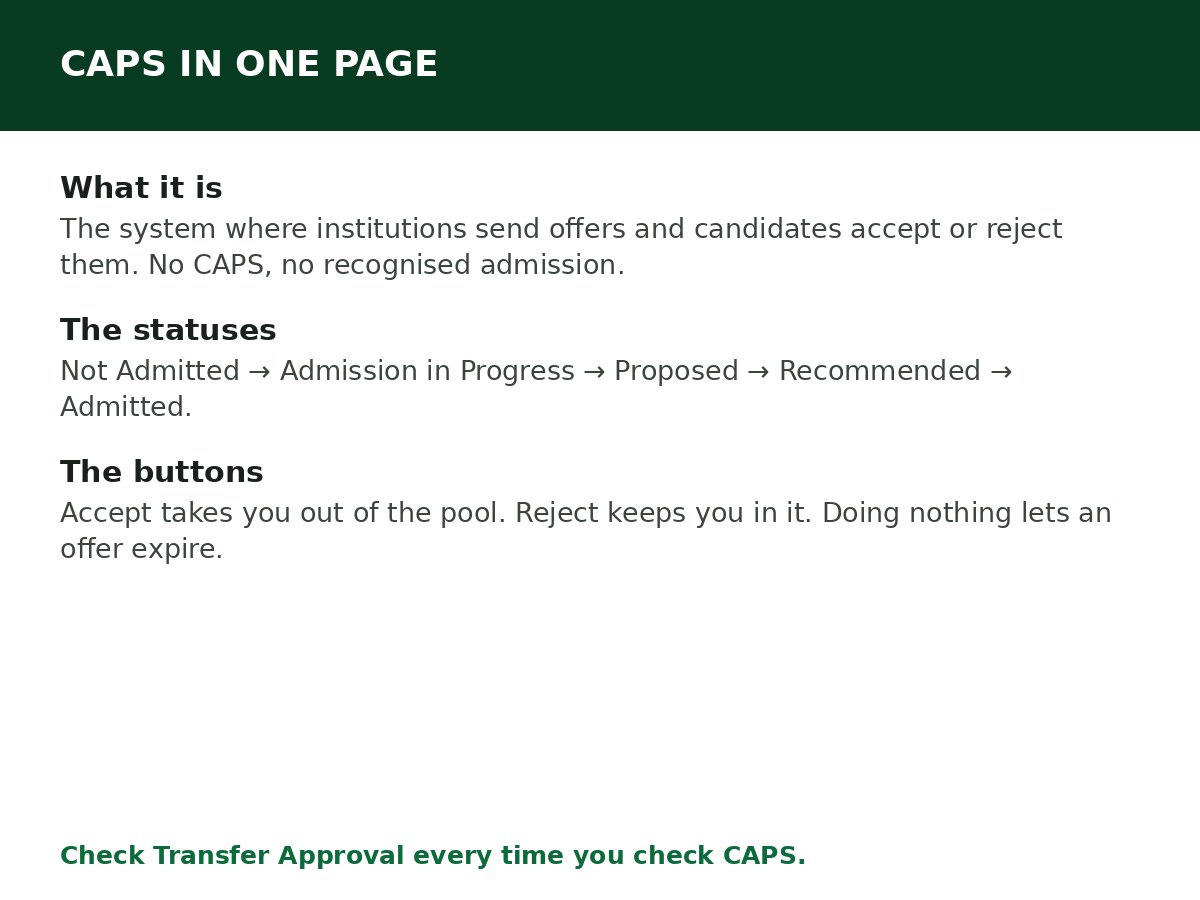
CAPS is where your admission actually happens. It stands for Central Admissions Processing System, and it is the part of JAMB’s e-Facility portal where institutions send admission offers and candidates accept or reject them.
An admission that never passes through CAPS is not a recognised admission. That single fact explains most of the confusion around JAMB admission: a school list, a text message, or a portal message from your institution is not the finish line. CAPS acceptance is.
What CAPS is, in plain words
After UTME and Post-UTME or screening, your chosen institution decides who it wants to admit. It does not admit you directly. It proposes you to JAMB through CAPS. JAMB checks that you meet the requirements, approves the offer, and then — and only then — you see an offer you can accept or reject.
CAPS is not a separate website with a separate login. You reach it through your JAMB e-Facility profile at efacility.jamb.gov.ng, using the email and password from your registration. Inside, you click Check Admission Status, select your exam year, enter your registration number, and click Access my CAPS. Then you open Admission Status.
That is the whole system. Everything else — the statuses, the buttons, the Transfer Approval tab — sits inside that one dashboard.
The statuses you will see, and what each one means
JAMB itself clarified these statuses in September 2026. Use JAMB’s meanings, not rumours from admission groups:
| Status | What it means | What to do |
|---|---|---|
| Not Admitted | Your institution has not yet sent your admission details to JAMB, or you have not yet been considered | Keep checking. This is the starting status for everyone, not a rejection |
| Admission in Progress | Your admission is still being processed and has not been concluded | Keep checking. Do not treat it as admission yet |
| Proposed for Admission | Admission has been proposed for you and is awaiting further processing | Wait for the next update |
| Recommended | JAMB has received your details from the institution and is verifying your eligibility | Your admission is not yet final. Keep checking |
| Admitted / Congratulations, you have been offered admission | JAMB has approved the offer | Accept or reject it on CAPS promptly — see below |
There are also two tabs that catch candidates out. Transfer Approval appears when an institution wants to admit you into a different course from the one you applied for. If you want that course, you must open the Transfer Approval tab and accept the transfer — ignoring it can leave you stuck on “Not Admitted”. My O’Level Result shows whether your O’Level result has been uploaded. If it is blank or says “Awaiting Result”, that alone can stall your admission — see How to Upload O’Level Result on JAMB CAPS.
Accept, reject, or do nothing: what each choice does
When an offer appears, two buttons become active: Accept Admission and Reject Admission. Until then, they stay greyed out — that is normal, not a fault.
- Accept: you take that offer. Once you accept, you are no longer in the admission pool for other institutions on CAPS. Your admission journey for that cycle is effectively over, and your next step is printing your admission letter and following your institution’s clearance process.
- Reject: you decline that offer. You stay in the admission pool, so other institutions with free slots can still consider you. Rejecting is not a punishment — it is a choice — but it is generally final for that particular offer, and the slot can go to another candidate.
- Do nothing: the worst option. Offers are not open-ended. An offer left unanswered within the period set for it can expire and revert to “Not Admitted” on JAMB’s records. If you see an offer, decide.
You can also respond by SMS: send ACCEPT or REJECT to 55019 or 66019 from your registered phone number, then log back into CAPS to confirm the choice was recorded. The portal method is the one to use if you can get online; the SMS method exists for candidates who cannot.
The phone problem every first-timer hits
On a phone, CAPS often opens to a blank page or a welcome message with no menu. That is not your admission failing — it is the CAPS page needing a desktop-sized screen.
In Chrome, tap the three dots at the top right and tick Desktop site, then reload. On Safari, request the desktop website. The sidebar menu, including Admission Status and My O’Level Result, then appears. If it still does not, use a laptop or a CBT centre computer rather than assuming something is wrong with your profile.
The scams that target first-timers
- “I can change your CAPS status for a fee.” No individual can change a CAPS status. Anyone claiming otherwise is running a scam.
- “Pay to push your Admission in Progress to Admitted.” Processing is done by the institution and JAMB. Payment to a third party does not move it.
- Admission lists on social media. A list screenshot is not an admission. Only CAPS counts, and only your own CAPS dashboard shows your own status.
- Sharing your e-Facility password with an “agent” to check CAPS for you. If someone else must check for you, change your password afterwards. Better: learn the desktop-mode step above and check it yourself.
A sensible checking routine
Admission lists come out in batches, and statuses change while institutions are still admitting. Checking every hour helps nothing and feeds anxiety. A routine that works:
- Check CAPS every few days during admission season, and check the Transfer Approval tab each time.
- Confirm your O’Level result is uploaded before you start worrying about a stalled status.
- When an offer appears, accept or reject it promptly — do not leave it sitting while you ask ten groups what to do.
- After accepting, print your admission letter and start your institution’s process — see What to Do After Accepting Admission on CAPS.
Related Guides & Next Steps
- How to Accept Admission on JAMB CAPS
- How to Check Admission Status on JAMB CAPS
- How to Check JAMB Result Online
- How to Reject Admission on JAMB CAPS
- How to Upload O’Level Result on JAMB CAPS
Frequently asked questions
Is CAPS a separate website from JAMB’s portal? No. CAPS is reached through your e-Facility profile at efacility.jamb.gov.ng. There is no separate CAPS login.
Does “Not Admitted” mean I have been rejected? No. It means you have not been offered admission yet. Institutions process in batches, and your status can change while the cycle is still open.
Does “Admission in Progress” mean I will definitely be admitted? No. JAMB has warned specifically against treating it as secured admission. A recommended offer can still be disapproved if you do not meet the requirements. It is encouraging, not final.
Can I accept admission on CAPS and still wait for another school? No. Accepting removes you from the pool for other institutions. Only reject if you genuinely prefer to wait for another offer — and understand that no other offer is guaranteed.
Why are the Accept and Reject buttons greyed out? Because there is no approved offer on your profile yet. They only become active when an offer appears.
Is checking CAPS free? Checking your status on the portal is free. Printing your admission letter afterwards is a paid e-Facility service, with the amount shown on the portal at checkout.
Sources and last update
- JAMB’s September 2026 clarification of CAPS statuses (Not Admitted, Admission in Progress, Proposed for Admission, Recommended), as reported by Legit and The Eagle Online from JAMB’s own explainer.
- CAPS access steps, desktop-mode fix, accept/reject consequences and SMS method, cross-checked across multiple independent JAMB guides.
Last updated: 24 October 2026. Evergreen guide — review every 3–6 months and on every JAMB admission-cycle announcement.

Written by Olaitan Ilori
Olaitan Ilori is the founder and lead researcher at CareerMedal. He provides verified, practical guides on Nigerian tertiary admissions (JAMB, CAPS, Post-UTME), NELFUND student finance, NYSC service-year survival, and early-career job placement.
View all guides by Olaitan Ilori →