
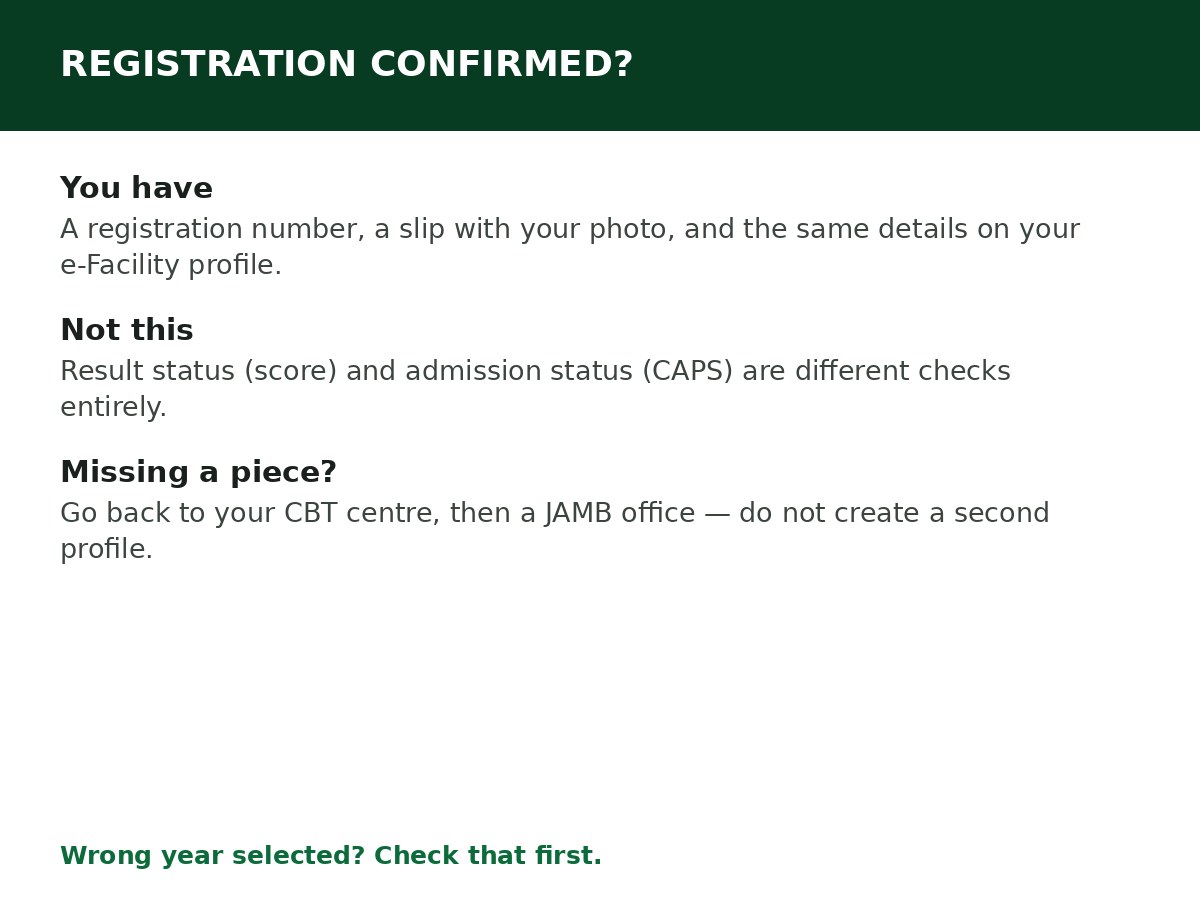
Your registration status is confirmed on your JAMB profile and on your registration slip — not on a single public “status” page, and not on CAPS. If you have a JAMB registration number, a registration slip with your photo and details, and the same details showing on your e-Facility profile, your registration went through.
This distinction matters, because candidates mix up three different checks: registration status (did my registration complete?), result status (what did I score?), and admission status (did a school offer me a place on CAPS?). This article is only about the first one. For the other two, see How to Check JAMB Result Online and How to Check Admission Status on JAMB CAPS.
What “registered” actually looks like
A completed UTME/DE registration produces all of these:
- A JAMB registration number (10 characters), issued at registration.
- A registration slip from the CBT centre, with your photo, fingerprints captured, personal details, institution and course choices, and UTME subjects.
- The same details on your e-Facility profile at efacility.jamb.gov.ng, under your registered email and password.
- A profile code that was used to buy the e-PIN and register — see How to Create a JAMB Profile Code.
If you have those, you are registered. If any piece is missing — no registration number, no slip, or a profile that shows no registration for your exam year — something did not complete, and the fix is at the centre or JAMB office, not by re-registering online yourself.
How to check, step by step
Step 1: Log in at efacility.jamb.gov.ng with your registered email and password.
Step 2: Check your profile and dashboard for your current exam year. Confirm your name, date of birth, institution and course choices, and UTME subjects match what you submitted at the CBT centre.
Step 3: Compare it with your registration slip. The slip is your proof from registration day. If the profile and the slip disagree, the slip plus a visit to the CBT centre or JAMB office is how you resolve it — do not try to “fix” it by creating a new profile.
Step 4: If you cannot find your slip, reprint your examination slip when JAMB activates slip printing for your cycle — see How to Print JAMB Examination Slip. The examination slip also confirms your registration details, centre, date and time.
Step 5: If the profile shows nothing for your exam year, or shows the wrong year, check that you selected the correct exam year in the portal. Selecting the wrong year is a common reason a genuine record appears missing.
If your registration looks incomplete
| What you see | Likely cause | What to do |
|---|---|---|
| No registration number at all | Registration was not completed at the centre | Return to the CBT centre where you registered, with your profile code and payment evidence. If the centre cannot resolve it, go to a JAMB office |
| Registration number exists, but profile shows wrong subjects or institution | Data entry error at registration | Report it at the CBT centre or JAMB office promptly. Some corrections are done through JAMB’s change-of-course/institution or correction services on e-Facility — do not create a second registration to work around it |
| Profile shows a previous year, not the current one | Wrong exam year selected, or you are looking at an old profile | Select the correct exam year. If it is still missing, confirm with the centre that your current registration was submitted |
| Slip printed, but photo or biometrics look wrong | Capture error at registration | Report it to a JAMB office immediately. Do not allow a centre to “force” a registration with failed biometrics — JAMB’s own guidance says to go to a JAMB office in that case |
| Someone else’s details on your profile | Wrong profile used, or an agent registered you under another account | Stop and go to a JAMB office with your NIN slip and ID. Do not pay the agent to “correct” it privately |
What registration status does not tell you
- It does not tell you your exam centre, date and time until slip printing is activated — that is the examination slip, a separate document.
- It does not tell you your score — that is the result check, after the exam.
- It does not tell you whether you have been admitted — that is CAPS, after Post-UTME/screening.
- It does not mean your O’Level result is uploaded. Registration and O’Level upload are separate steps — check My O’Level Result on CAPS for the upload: How to Upload O’Level Result on JAMB CAPS.
Related Guides & Next Steps
- How to Check Admission Status on JAMB CAPS
- How to Check JAMB Result Online
- How to Create a JAMB Profile Code (SMS Format & Fixes)
- How to Print JAMB Examination Slip
- How to Upload O’Level Result on JAMB CAPS
Frequently asked questions
Can I check my registration status with only my phone number? No official public check works that way. You need your e-Facility login, or your registration slip. Anyone offering a registration check from a phone number alone is not using JAMB’s official route.
I registered at a CBT centre but never got a slip. Am I registered? Not confirmed. Go back to the centre and ask for your registration slip and number. Without them, you have no proof the registration completed.
Can I check registration status by SMS? The SMS shortcodes (55019/66019) are for profile code generation, RESEND recovery, result checking (UTMERESULT) and CAPS acceptance/rejection — not for a general registration-status check. Use the portal and your slip.
My profile shows my details, but my course choice is wrong. Can I change it? Yes, through JAMB’s change-of-course/institution service on e-Facility, within the window JAMB sets for it. See How to Change Course on JAMB Portal and How to Change Institution on JAMB Portal when those guides publish.
I lost my registration slip. What do I do? Log in to e-Facility and reprint your examination slip when slip printing is active for your cycle. If it is not active yet, your CBT centre or a JAMB office can confirm your registration details from your profile.
Sources and last update
- Registration confirmation via e-Facility profile and registration/examination slip, cross-checked across multiple independent JAMB guides; no dedicated public “registration status” page was found in JAMB’s published routes, so this article does not invent one.
- Biometric-failure guidance per JAMB’s published registration guidelines (visit a JAMB office; do not allow forced registration).
Last updated: 24 October 2026. Evergreen guide — review every 3–6 months and on every JAMB registration-cycle announcement.

Written by Olaitan Ilori
Olaitan Ilori is the founder and lead researcher at CareerMedal. He provides verified, practical guides on Nigerian tertiary admissions (JAMB, CAPS, Post-UTME), NELFUND student finance, NYSC service-year survival, and early-career job placement.
View all guides by Olaitan Ilori →