

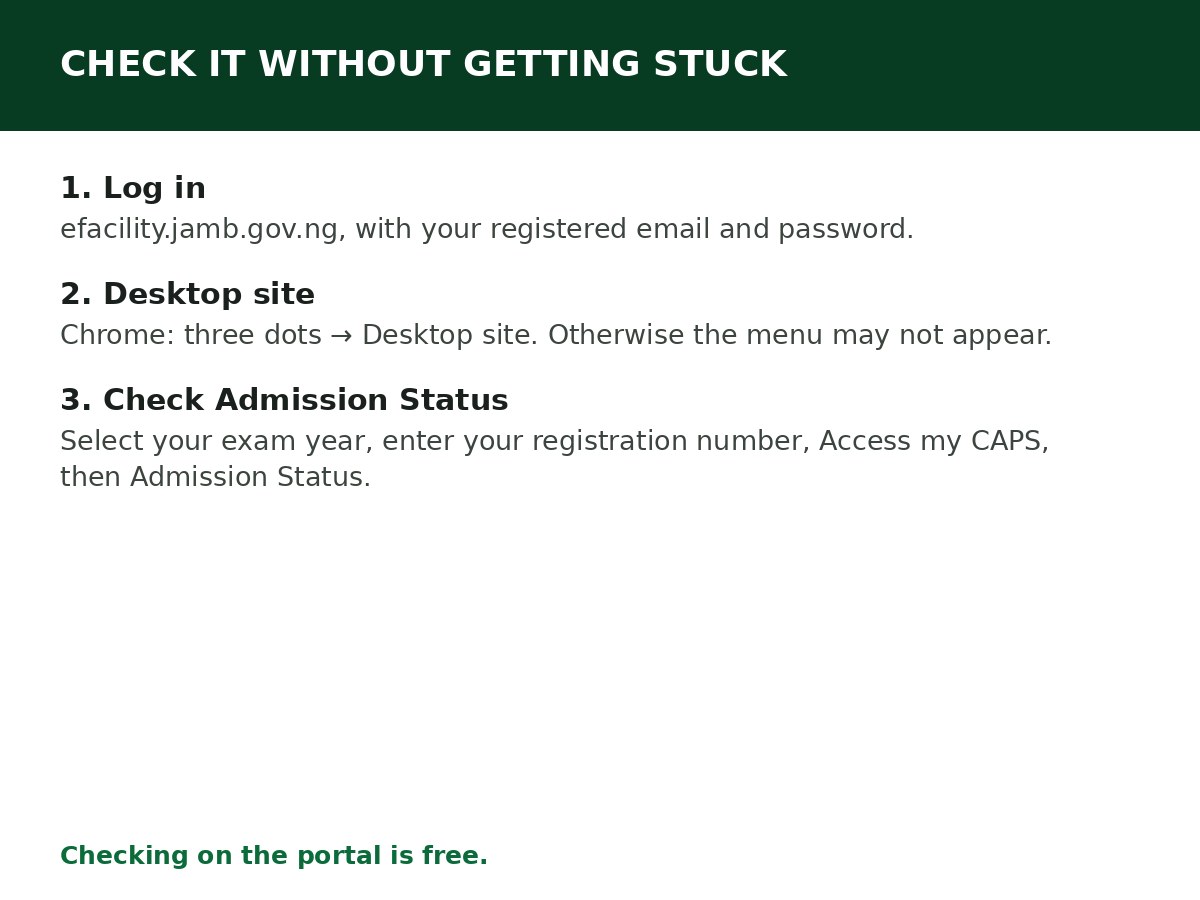
Go to efacility.jamb.gov.ng, log in, click Check Admission Status, select your exam year, enter your registration number, click Access my CAPS, then open Admission Status. That is the check — everything below is how to do it without getting stuck on the phone screen.
Checking is free. You need only three things: your registered email and password, your JAMB registration number, and a browser that can show the desktop version of CAPS.
Step by step
Step 1: Open your browser and go to efacility.jamb.gov.ng. Type the address yourself. Do not click a CAPS link sent to you on WhatsApp or by SMS.
Step 2: Log in with the email address and password you used during JAMB registration. If you have forgotten the password, use the “Forgot Password” link — JAMB sends a reset link to your registered email.
Step 3: On your dashboard, click Check Admission Status.
Step 4: Select your exam year (for example, 2026 for the 2026 cycle, or Direct Entry if that is how you applied) and enter your JAMB registration number.
Step 5: Click Access my CAPS.
Step 6: On the CAPS dashboard, click Admission Status in the menu. Your current status appears there.
The phone fix: switch to Desktop site
This is the step most guides bury and most candidates need. On a phone, CAPS frequently opens to a blank page or a welcome message with no clickable menu. The CAPS interface is built for a desktop screen, and the mobile view hides the sidebar.
In Chrome: tap the three dots at the top right, tick Desktop site, and reload the page. The menu — Admission Status, My O’Level Result, Transfer Approval — then appears on the left. In Safari: tap the “aA” icon and choose Request Desktop Website.
If the menu still does not appear, use a laptop, or a computer at an accredited CBT centre. Do not conclude that your admission is missing just because the menu is missing.
Reading what you see
| What CAPS shows | What it means | Your next move |
|---|---|---|
| Not Admitted | No offer yet. Your institution has not sent your details to JAMB, or has not considered you yet | Keep checking. Also check My O’Level Result — a missing upload stalls many profiles |
| Admission in Progress | Processing is ongoing, not concluded | Keep checking. Do not announce admission yet |
| Proposed for Admission / Recommended | Proposed or being verified by JAMB | Wait for the next update |
| Congratulations, you have been offered admission | Approved offer, with institution and course shown | Accept or reject promptly — see How to Accept Admission on JAMB CAPS and How to Reject Admission on JAMB CAPS |
| A Transfer Approval request | Institution wants to admit you into a different course | Open the Transfer Approval tab and decide there. Ignoring it can leave you stuck |
If the Accept and Reject buttons are greyed out, there is no approved offer yet. That is normal.
How often should you check?
During admission season, every few days is enough. Institutions release lists in batches, and a status that is “Not Admitted” on Monday can change later in the same cycle. Checking every hour does not change the processing speed, but checking the Transfer Approval tab each time you check does matter — a transfer request sitting unanswered is a real reason candidates miss out.
Keep checking until your institution’s admission window for the cycle closes. After that point, “Not Admitted” is final for that cycle, and your options become change of institution/course for the next round, supplementary admission where available, or the next UTME cycle.
If you cannot log in at all
- Wrong password: reset it from the login page. If the reset email never arrives, check spam, then confirm you are using the email from registration — not a newer email.
- Email also inaccessible: visit a JAMB office with a valid ID and your registration number. This cannot be fixed by SMS from a new number.
- Page loads but CAPS is blank: desktop mode first, then a different browser, then a laptop. In that order.
- Someone else “checked for you” and says you are admitted: check it yourself on CAPS before you pay any fee, buy any form, or travel anywhere. Only your own dashboard counts.
Related Guides & Next Steps
- How to Accept Admission on JAMB CAPS
- How to Check JAMB Result Online
- How to Reject Admission on JAMB CAPS
- How to Upload O’Level Result on JAMB CAPS
- JAMB CAPS Explained for First-Time Candidates
Frequently asked questions
Can I check my admission status without logging in, using only my registration number? No. You need your e-Facility login. Any site claiming to show your status from a registration number alone is not JAMB’s official route.
Is there an SMS way to check admission status? The SMS method (ACCEPT/REJECT to 55019 or 66019) is for responding to an offer, not for viewing your full status. Use the portal to see the status itself.
My friend with a lower score got admitted and I didn’t. Is my CAPS broken? Not necessarily. Admission depends on course, institution, catchment, O’Level upload, subject combination, and Post-UTME/screening — not on UTME score alone. Check your O’Level upload and your course requirements before assuming an error.
Should I pay someone to check CAPS for me every day? No. The check is free, takes minutes once you know the desktop-mode step, and giving someone your password creates a bigger problem than the one you are solving.
What do I do the moment I see an offer? Read the institution and course carefully first — especially if it is a transfer to a different course. Then accept or reject it on CAPS promptly. An unanswered offer can expire.
Sources and last update
- CAPS access steps and desktop-mode fix, cross-checked across multiple independent JAMB guides and JAMB’s own status clarification.
- Status meanings per JAMB’s September 2026 clarification.
Last updated: 24 October 2026. Evergreen guide — review every 3–6 months and on every JAMB admission-cycle announcement.

Written by Olaitan Ilori
Olaitan Ilori is the founder and lead researcher at CareerMedal. He provides verified, practical guides on Nigerian tertiary admissions (JAMB, CAPS, Post-UTME), NELFUND student finance, NYSC service-year survival, and early-career job placement.
View all guides by Olaitan Ilori →